 Download for Windows
Install it
On Windows
- Click Download for Windows above and open JollyChristmasSetup.exe when it finishes.
- Windows will probably say “Windows protected your PC”. That is SmartScreen being cautious about a small hobby program it hasn't seen much of. Click More info, then Run anyway. (If your browser itself flags the download, choose Keep.)
- Click Install and say Yes when Windows asks for permission.
- That's it. Click Preview to see it right away, or just leave your PC alone for a few minutes.
Setup copies the screensaver into Windows itself, so you can delete the download afterwards. It shows up as JollyChristmas in Windows' Screen saver settings, and you can remove it any time from Settings → Apps → Installed apps.
On a Mac
- Click Download for Mac above. Most browsers unzip it for you; if yours doesn't, double-click JollyChristmas-mac.zip in your Downloads folder.
- Double-click JollyChristmas.saver and choose to install it. If macOS asks whether you're sure you want to open something downloaded from the internet, say yes.
- Open System Settings → Wallpaper, click Screen Saver…, scroll to the bottom and pick Jolly Christmas under Other.
It's signed and notarized by Apple, so it installs like any other Mac download. It works on Apple silicon and Intel Macs running macOS 13 Ventura or later. To remove it later, open Finder, choose Go → Go to Folder…, type ~/Library/Screen Savers and move JollyChristmas.saver to the Trash.
Three scenes
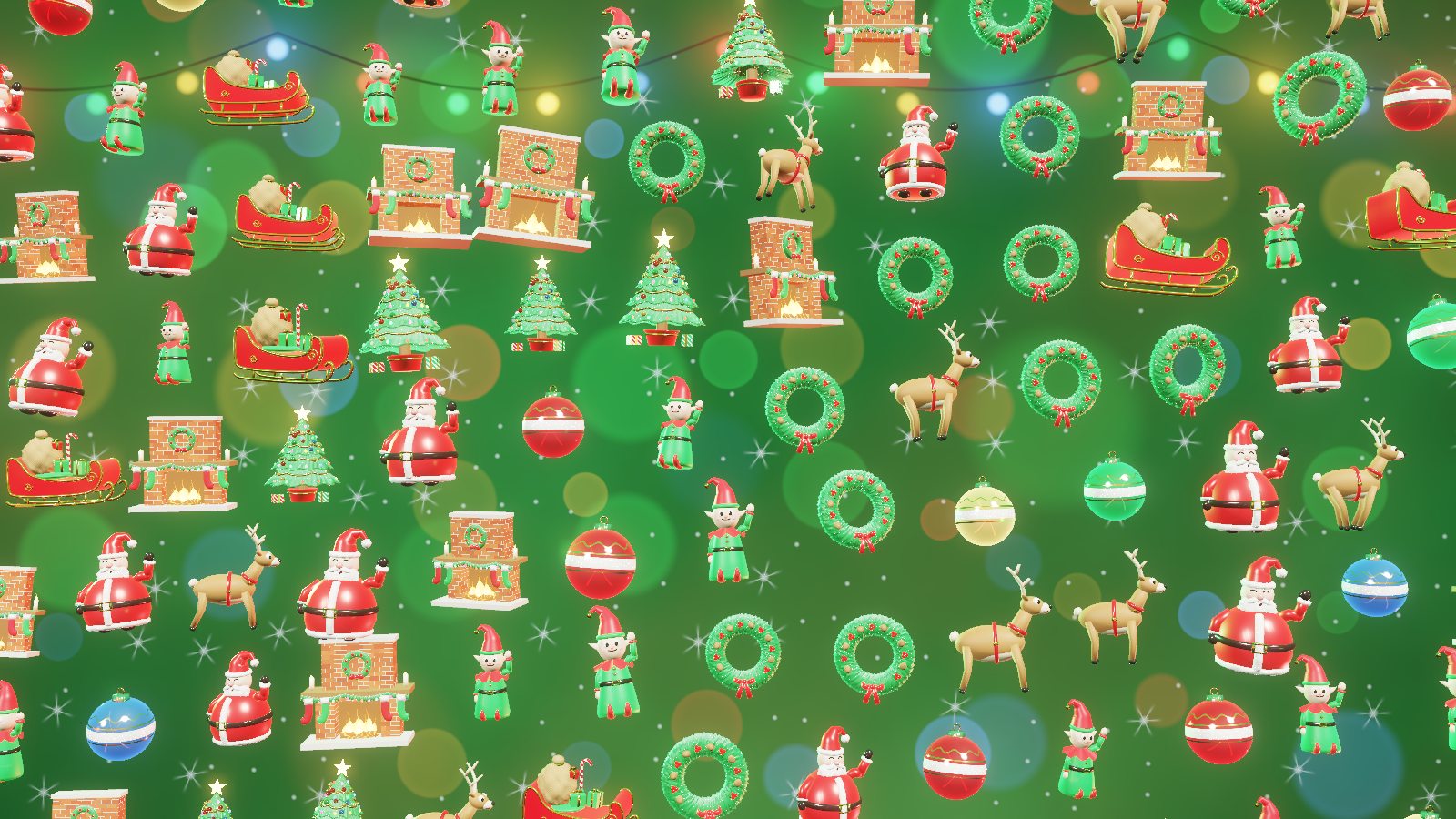
Lanes of Christmas glide across the screen, bobbing softly, while sleigh-bell beats ripple out from a wandering point.
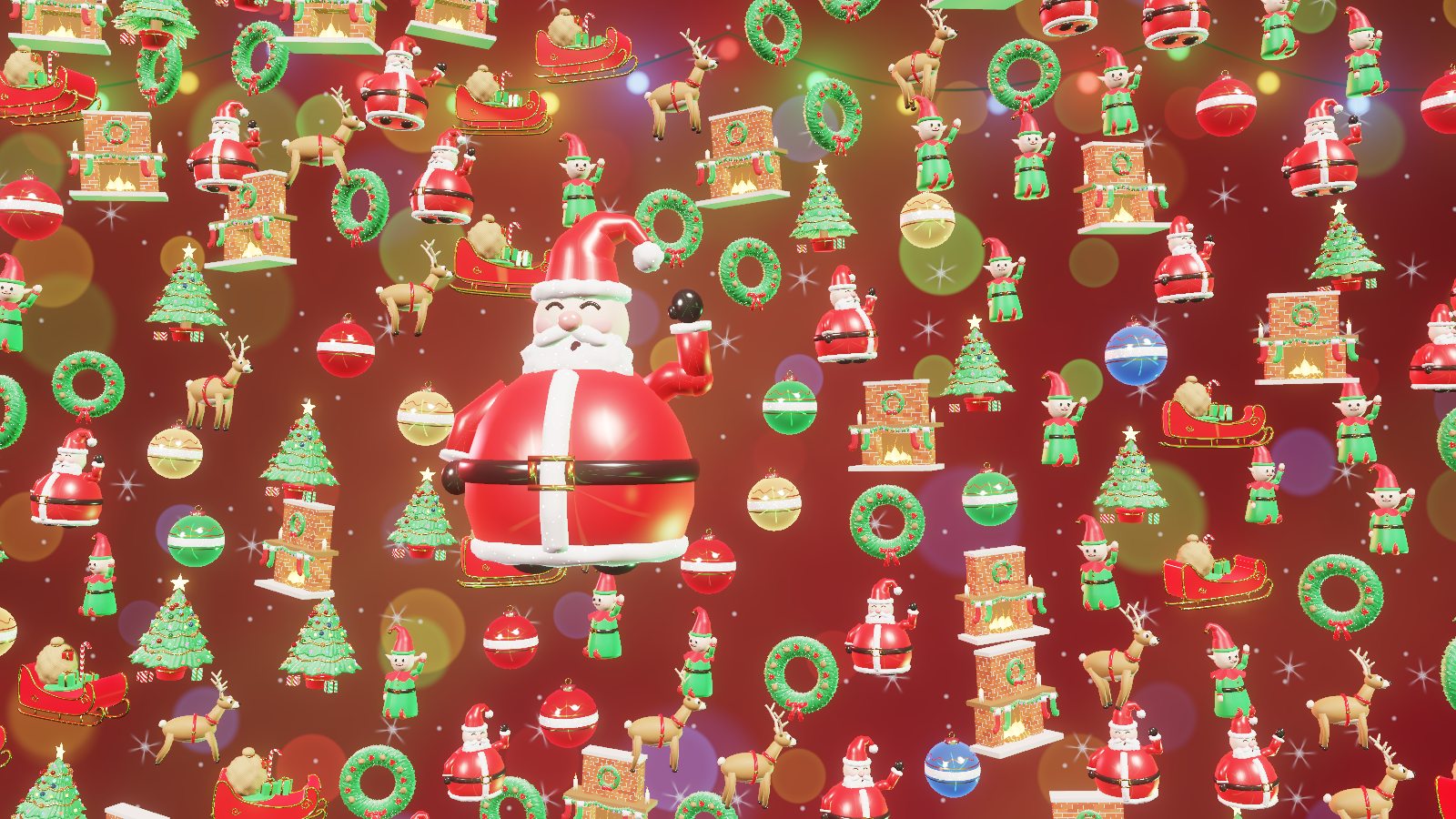
Soft star-shaped rings circle a big waving Santa, alternate rings turning in opposite directions like carollers round a tree.
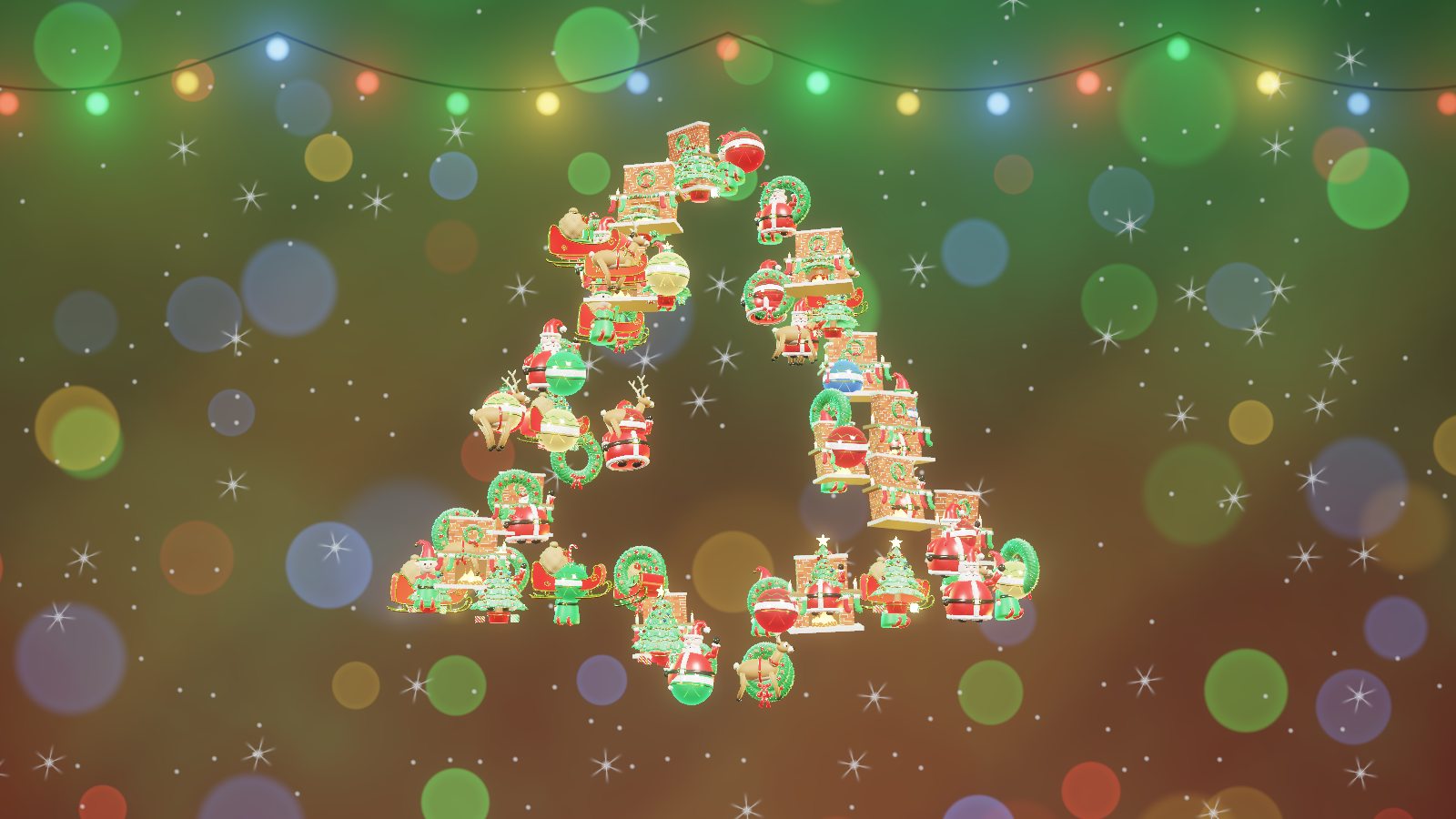
A quilt with a glowing tree in it lifts into strands swirling round a garland loop, which settles into a Christmas-tree shape before the quilt lands again.
Santa and the elves wave, the reindeer prance, the fire flickers and the fairy lights twinkle. The motion is gentle: slow sways and the odd unhurried twirl, nothing shaken about.
HDR
If your screen does HDR and Settings → System → Display → Use HDR is on, the screensaver switches itself to HDR10 automatically, the tree-top star, fairy lights, glass ornaments, candy-apple lacquer, gold trim, holly berries and the fire glinting in saturated colour, up to 2,000 nits. No HDR screen? It looks great in regular SDR too.
On a Mac it's even easier: there's nothing to switch on. MacBook Pros with a Liquid Retina XDR screen, the Pro Display XDR and other HDR displays get real HDR automatically, mastered to 1,600 nits, which is everything an XDR panel can put out. Every other Mac gets the regular version.
Settings
- Open Settings → Personalization → Lock screen → Screen saver, pick JollyChristmas, then click Settings… to change the crowd density, seconds per scene, HDR on or off, and the HDR peak brightness.
- On a Mac, open System Settings → Wallpaper → Screen Saver…, pick Jolly Christmas and click Options… for the same choices.
- Move the mouse or press any key to make it go away.
- Got more than one monitor? Each screen gets the full show.
- Older or very low-end graphics chips: on Windows it needs OpenGL 3.3, which anything from the last ten years has. Macs use Metal, which every Mac that runs macOS 13 has. On slower graphics it quietly lowers its resolution to stay smooth.