 Download for Windows
Install it
On Windows
- Click Download for Windows above and open StarSpangledSetup.exe when it finishes.
- Windows will probably say “Windows protected your PC”. That is SmartScreen being cautious about a small hobby program it hasn't seen much of. Click More info, then Run anyway. (If your browser itself flags the download, choose Keep.)
- Click Install and say Yes when Windows asks for permission.
- That's it. Click Preview to see it right away, or just leave your PC alone for a few minutes.
Setup copies the screensaver into Windows itself, so you can delete the download afterwards. It shows up as StarSpangled in Windows' Screen saver settings, and you can remove it any time from Settings → Apps → Installed apps.
On a Mac
- Click Download for Mac above. Most browsers unzip it for you; if yours doesn't, double-click StarSpangled-mac.zip in your Downloads folder.
- Double-click StarSpangled.saver and choose to install it. If macOS asks whether you're sure you want to open something downloaded from the internet, say yes.
- Open System Settings → Wallpaper, click Screen Saver…, scroll to the bottom and pick Star Spangled under Other.
It's signed and notarized by Apple, so it installs like any other Mac download. It works on Apple silicon and Intel Macs running macOS 13 Ventura or later. To remove it later, open Finder, choose Go → Go to Folder…, type ~/Library/Screen Savers and move StarSpangled.saver to the Trash.
Three scenes
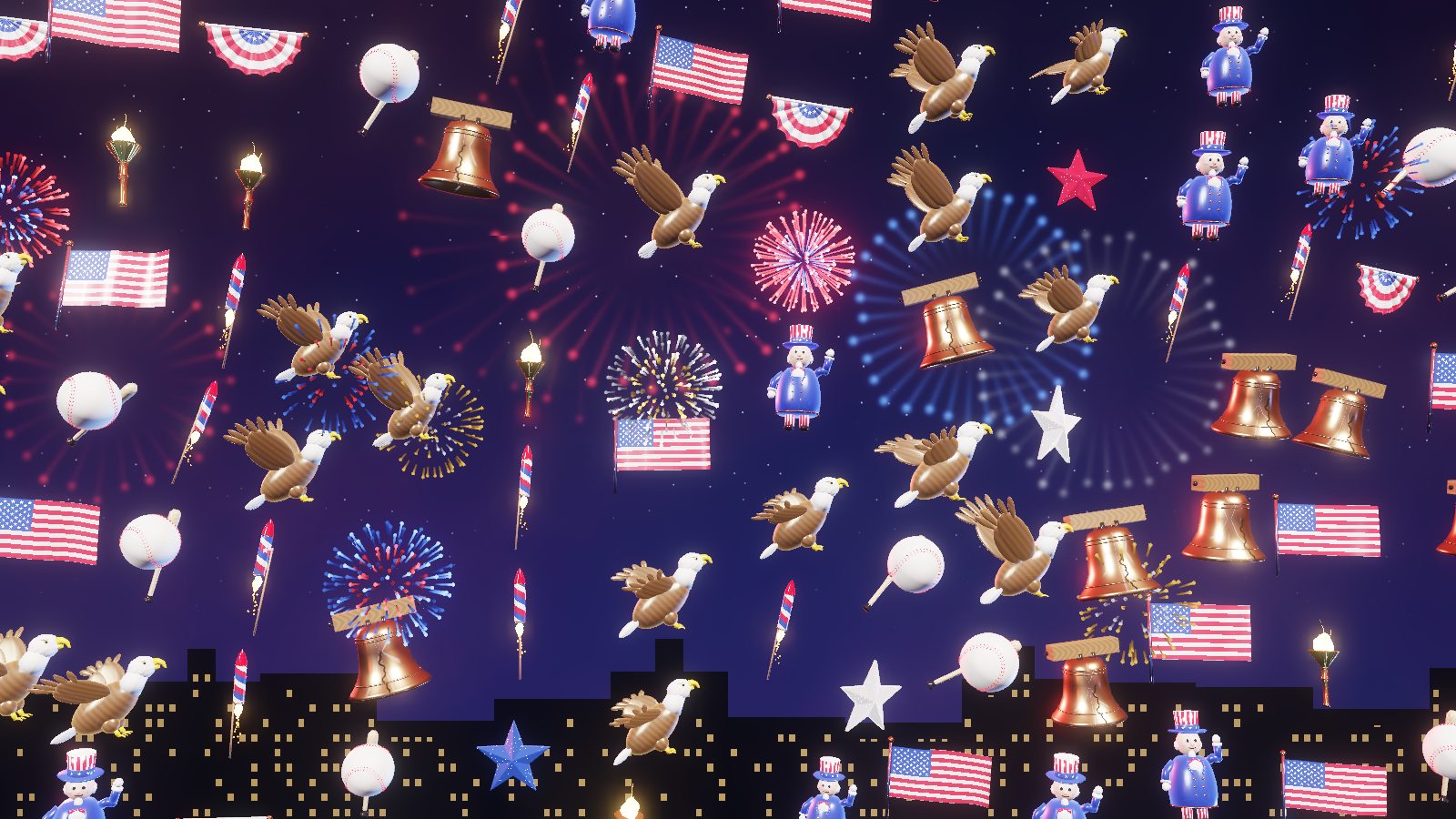
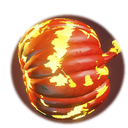
Lanes climb the night sky on slowly snaking paths. Rockets lean into their path and roll, eagles climb with the flow, and each boom ripples out from a wandering launch point.
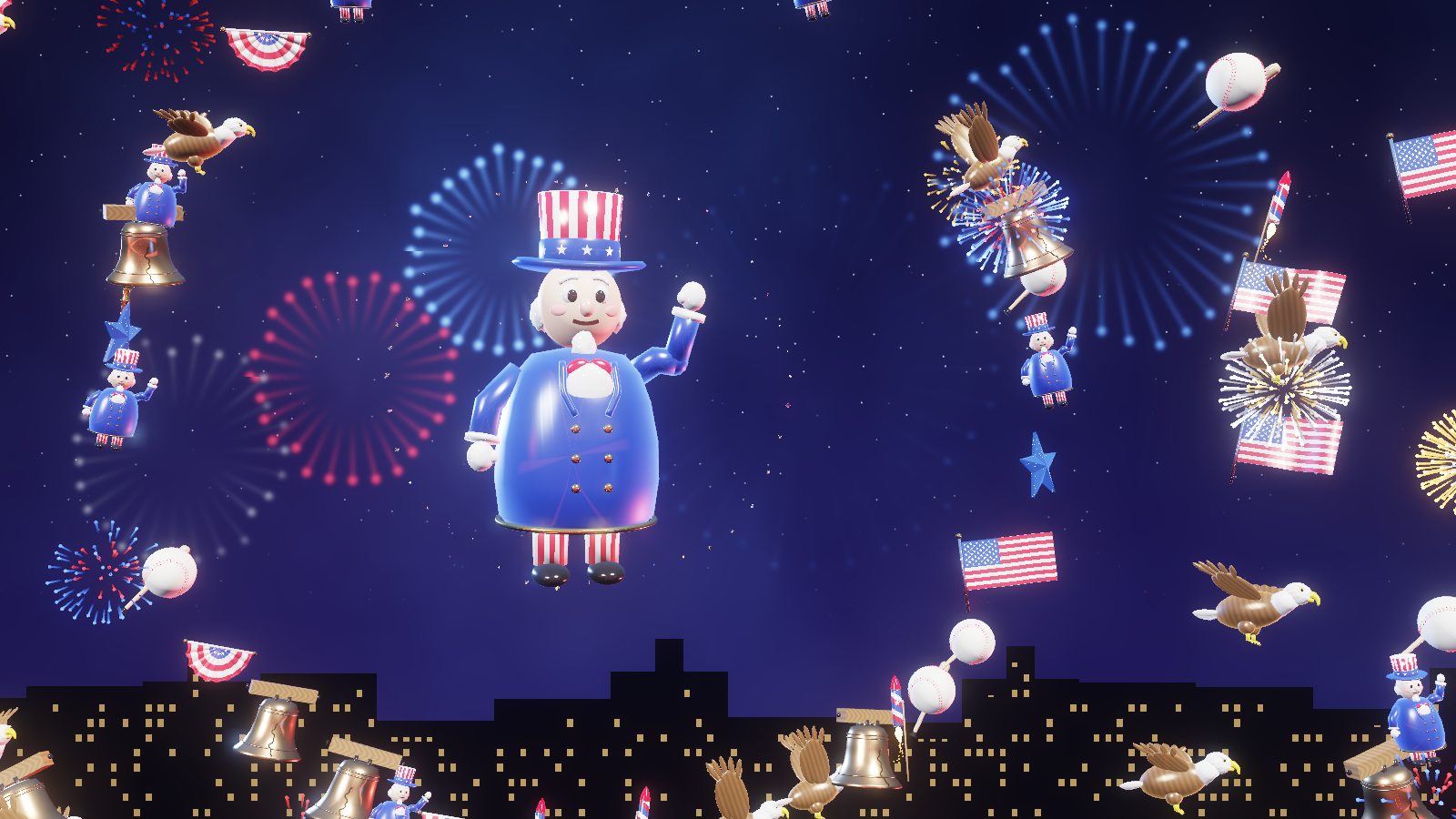
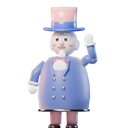
Rings are born round a big waving Uncle Sam and burst outward like a firework shell, twisting into pinwheel arms as they fly towards you.
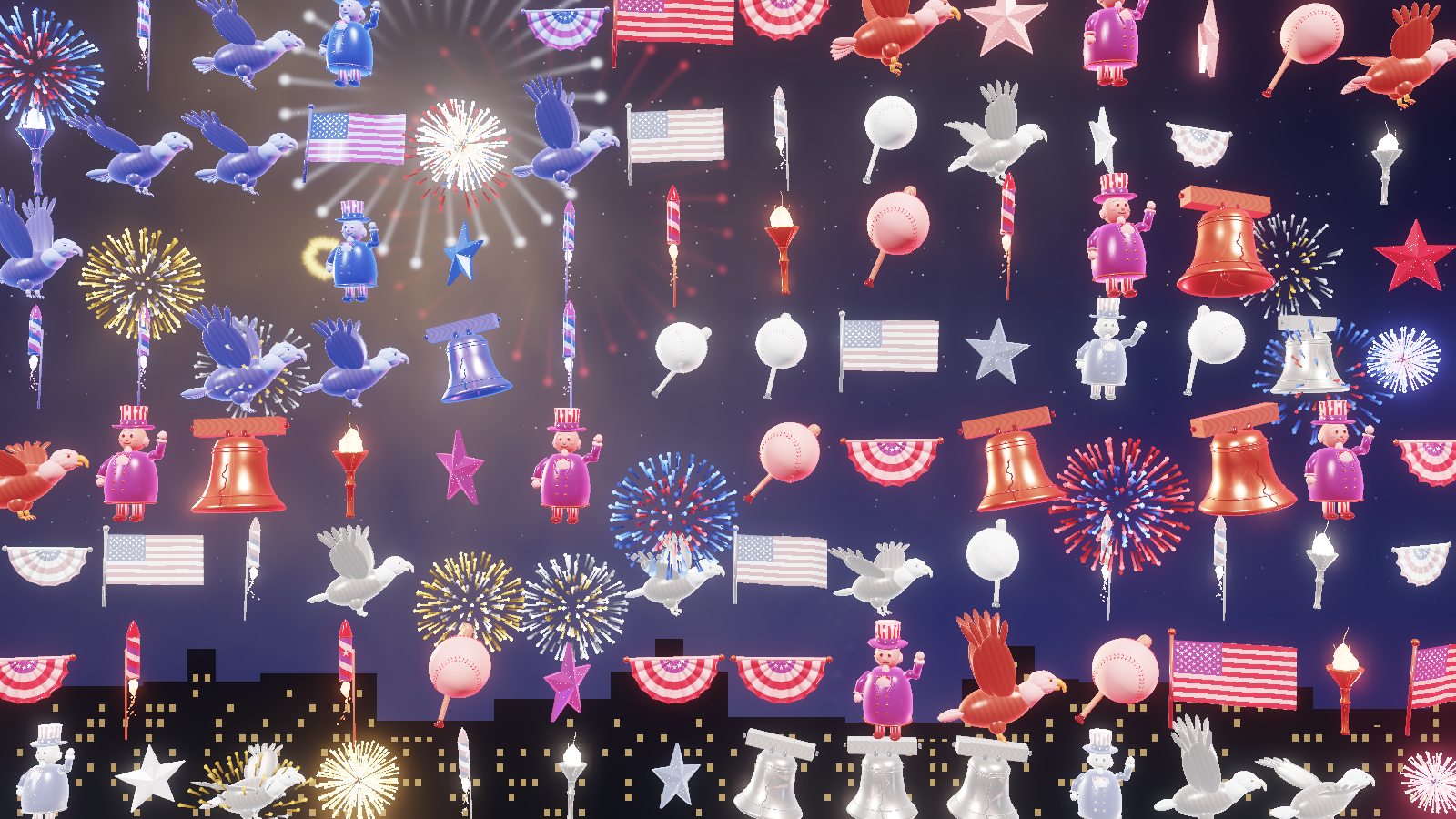
A quilt laid out as the flag ripples in the breeze, lifts into strands round a waving banner and settles into a five-point star.
Firework bursts bloom, droop and crackle out on the booms, the Liberty Bell swings, the eagle flaps and Uncle Sam waves. Behind it all: a summer night with distant fireworks over a small-town skyline.
HDR
If your screen does HDR and Settings → System → Display → Use HDR is on, the screensaver switches itself to HDR10 automatically, firework streaks, rocket flames, the torch, flag stars, gold and glossy stars blazing in colour, up to 2,000 nits. No HDR screen? It looks great in regular SDR too.
On a Mac it's even easier: there's nothing to switch on. MacBook Pros with a Liquid Retina XDR screen, the Pro Display XDR and other HDR displays get real HDR automatically, mastered to 1,600 nits, which is everything an XDR panel can put out. Every other Mac gets the regular version.
Settings
- Open Settings → Personalization → Lock screen → Screen saver, pick StarSpangled, then click Settings… to change the crowd density, seconds per scene, HDR on or off, and the HDR peak brightness.
- On a Mac, open System Settings → Wallpaper → Screen Saver…, pick Star Spangled and click Options… for the same choices.
- Move the mouse or press any key to make it go away.
- Got more than one monitor? Each screen gets the full show.
- Older or very low-end graphics chips: on Windows it needs OpenGL 3.3, which anything from the last ten years has. Macs use Metal, which every Mac that runs macOS 13 has. On slower graphics it quietly lowers its resolution to stay smooth.